Tools, Skills & MCP
Out of the box, your agent can only talk. Tools, skills, and MCPs let it do things: transfer a call to a colleague, search your knowledge base, or use your other business systems. You will find all three as accordions in the center of the agent configuration screen.
Functions
The Functions accordion is described as "Enable tools the agent can use during calls". These are the built-in actions every agent can be given.
To turn them on:
- Open the Functions accordion.
- Click Configure Functions. A modal titled Configure Function Tools opens.
- Switch on the tools you want, then close the modal.
- Click Save.
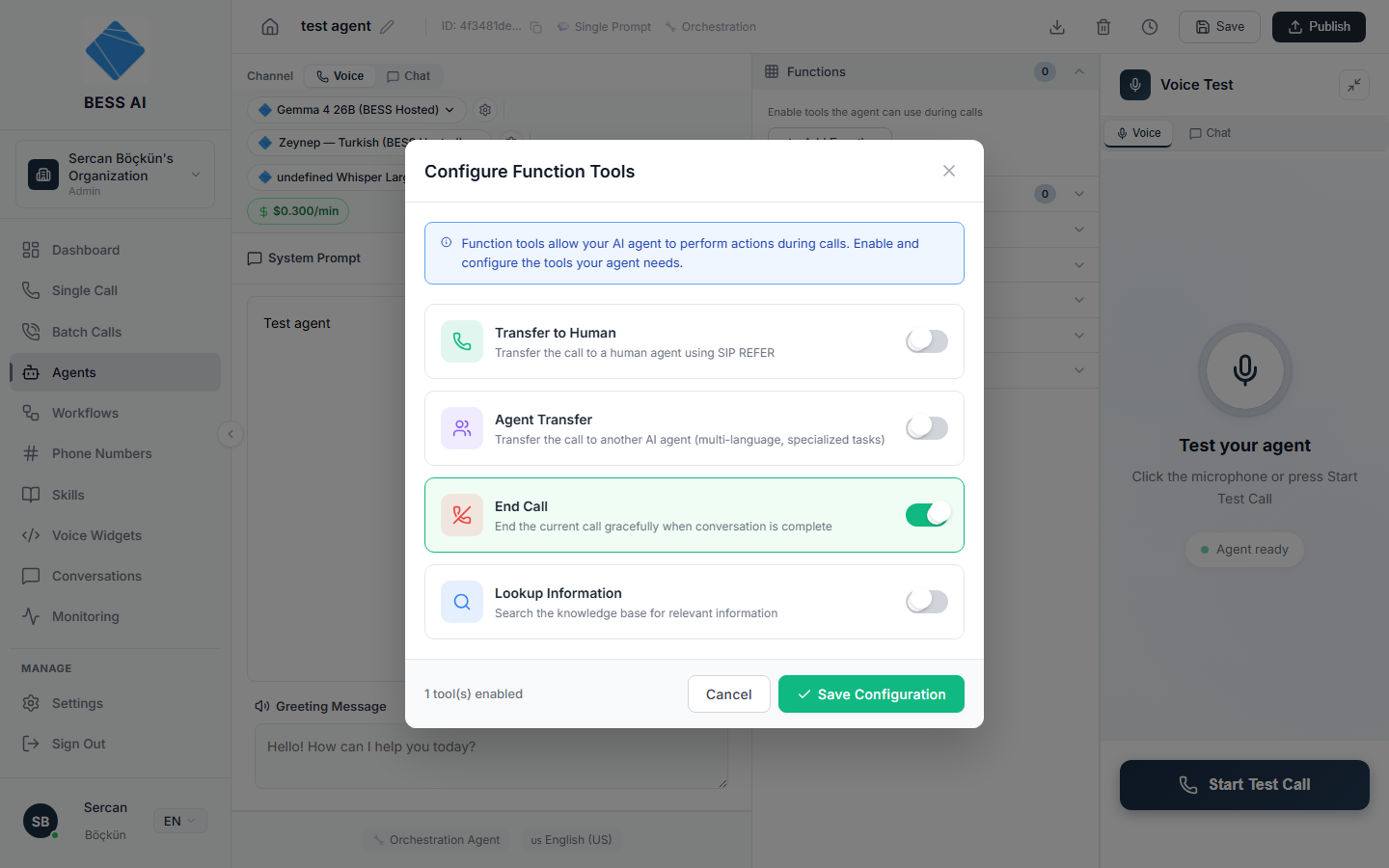
The built-in tools are:
- Transfer to Human — lets the agent hand the call over to a real person, for example when the caller asks for a human or the question is beyond the agent. Transfers need a bit of SIP setup to work with your operator or PBX — the Call Transfers guide covers modes, warm transfers, and provider requirements.
- End Call — lets the agent hang up politely on its own once the conversation is finished, instead of waiting for the caller to do it.
- Lookup Information — described as "Search the knowledge base for relevant information". This is how your agent answers questions from your own documents: connect a knowledge base, enable this tool, and the agent searches it mid-conversation.
- Agent Transfer — lets the agent pass the conversation to another one of your agents, for example from a receptionist agent to a sales agent.
Lookup Information only helps if there is something to look up. Make sure you have uploaded documents to a knowledge base first — otherwise the agent will search and find nothing.
Skills
The Skills accordion is described as "On-demand knowledge files the agent can load mid-call. Manage the library on the Skills page."
Think of skills as reference cards: focused knowledge files the agent pulls up only when the conversation needs them, instead of carrying everything in its prompt all the time.
To attach skills:
- Create your skills on the Skills page first — that is where the library lives.
- Back on the agent, open the Skills accordion.
- Click Select Skills and choose the ones this agent should have.
- Click Save.
MCPs
MCP is an open standard that lets your agent securely use tools from other software — think of it as a power outlet your other systems can plug into. If a vendor or your IT team gives you an MCP endpoint, your agent can use whatever tools that endpoint offers, such as booking systems or CRMs.
The MCPs accordion is described as "Enable your agent with capabilities of MCPs".
To connect one:
- Open the MCPs accordion and click Add MCP.
- In the modal, paste the endpoint URL you were given.
- Choose the transport, and add an auth header if your provider requires one. Your IT contact or vendor will tell you these values — you do not need to invent them.
- Click Connect & Discover Tools. The platform contacts the endpoint and lists the tools it found.
- Save the MCP, then click Save on the agent.
Tools discovered through an MCP can take real actions in the connected system. Only connect endpoints you trust, and test the agent thoroughly before publishing.
Workflows
Next to these accordions you will also find Workflows, which is available when editing an existing agent (not during creation). It lets you link automation workflows to the agent through the Link Workflow to Agent modal, where you set a trigger condition and a priority for each linked workflow. Workflows have their own guide — see the Workflows section of these docs.
What to do next
Once your tools are configured, run a test conversation to confirm the agent actually uses them at the right moments — see Testing & Publishing.