Batch Calls
The Batch Calls page runs an outbound calling campaign: upload a contact list and your agent calls everyone on it automatically.
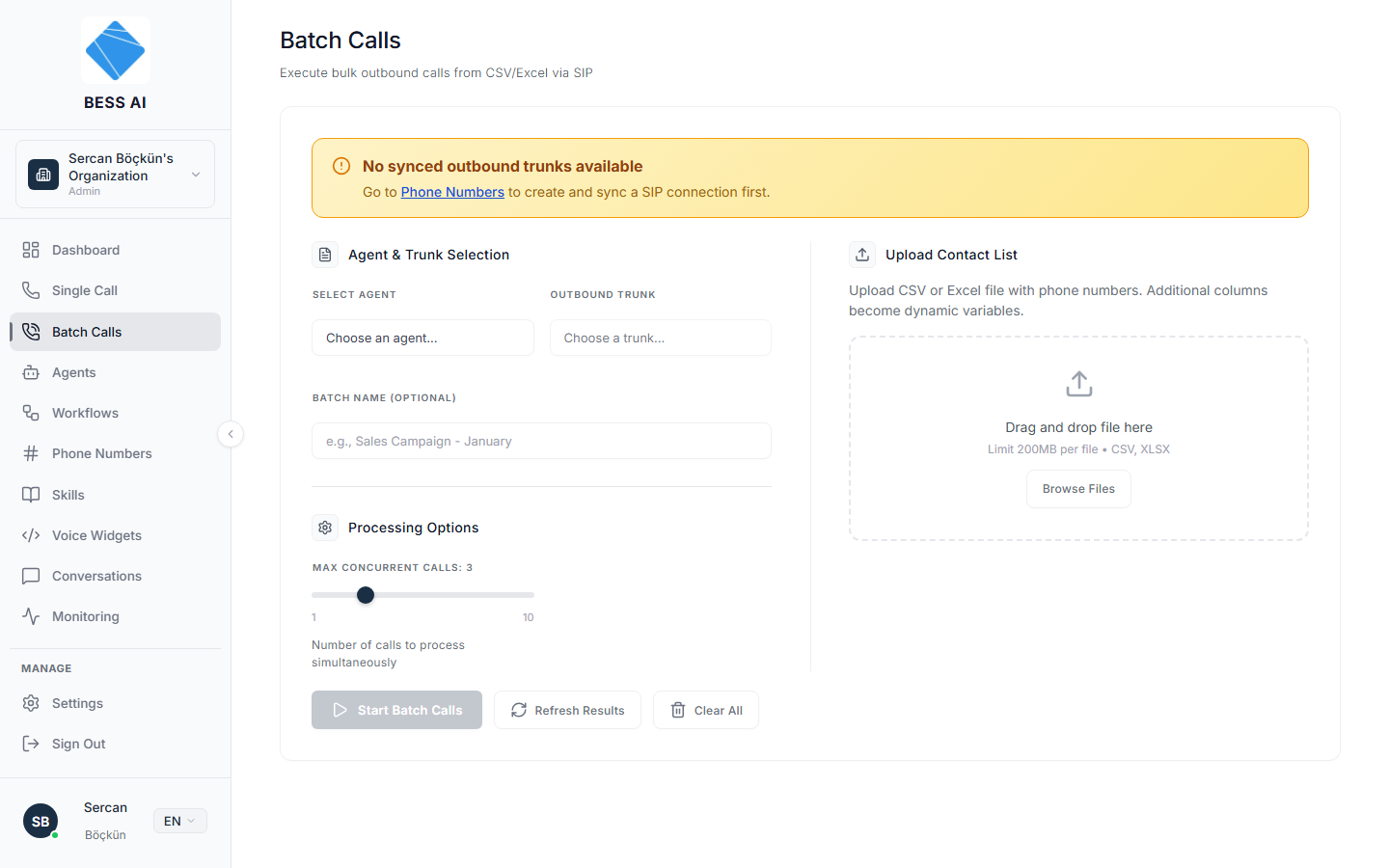
The page header reads Batch Calls with the subtitle Execute bulk outbound calls from CSV/Excel via SIP.
Setting up a campaign
1. Agent and trunk
- In Agent & Trunk Selection, open Select Agent and choose the agent that will make the calls. Only published agents are listed.
- Open Outbound Trunk and choose the number the calls should come from. Only synced trunks can be selected.
- Optionally, name your campaign in Batch Name (optional) so it is easy to recognize later.
2. Processing options
In Processing Options, set Max Concurrent Calls with the slider. You can run 1 to 10 calls at the same time.
Higher concurrency finishes the campaign faster, but every simultaneous call needs an available line. If you are unsure, start low (2 or 3) and increase it on your next campaign.
3. Upload your contacts
- In Upload Contact List, drag your CSV or Excel file onto the dropzone, or browse for it.
- Check the preview. It shows how many rows were read as "N valid contacts" and how many rows are missing a phone number.
- Extra columns in your file (names, amounts, dates) become dynamic variables that personalize each call.
4. Start
Click Start Batch Calls. The campaign begins right away.
Batch Progress
While the campaign runs, the Batch Progress section shows:
- A status pill: Running, Completed, Paused, or Cancelled.
- A progress bar that reads "X / Y processed".
- Four tiles counting Active, Completed, Failed, and Pending calls.
- The Call Results table with one row per contact: Phone Number, Status, Attempts, and Error.
Controls
- Pause — stop placing new calls. Calls already in progress finish normally.
- Resume — continue a paused campaign where it left off.
- Cancel — end the campaign. A confirmation warns: Remaining calls will not be made.
- Export Results — download the results table.
- Refresh Results — reload the latest statuses.
- Clear All — reset the page so you can set up a new campaign.
Cancel cannot be undone. Contacts still pending will not be called. If you only need a break, use Pause instead.
If you close or reload the page while a campaign is running, the calls keep going in the background. When you return, an active-campaign banner appears and lets you pick the campaign back up without losing progress.
Troubleshooting
- My agent is not listed. Only published agents appear in Select Agent. Publish the agent first.
- No trunk to choose. Only synced trunks appear under Outbound Trunk. Go to the Phone Numbers page, add a SIP connection, and sync it.
- The preview shows fewer contacts than my file has. Rows without a recognizable phone number are skipped and counted as missing. Fix the phone column and re-upload. Numbers work best in E.164 format, like
+905551234567. - Many Failed rows. Check the Error column in Call Results for the per-contact reason, then open the Monitoring page for full call details.