Conversations
Text chat sessions across your agents — web widget, API, and dashboard test.
This page is where you review every text conversation your agents have had, no matter where it happened: a chat widget on your website, a partner integration through the API, or a test you ran from the dashboard.
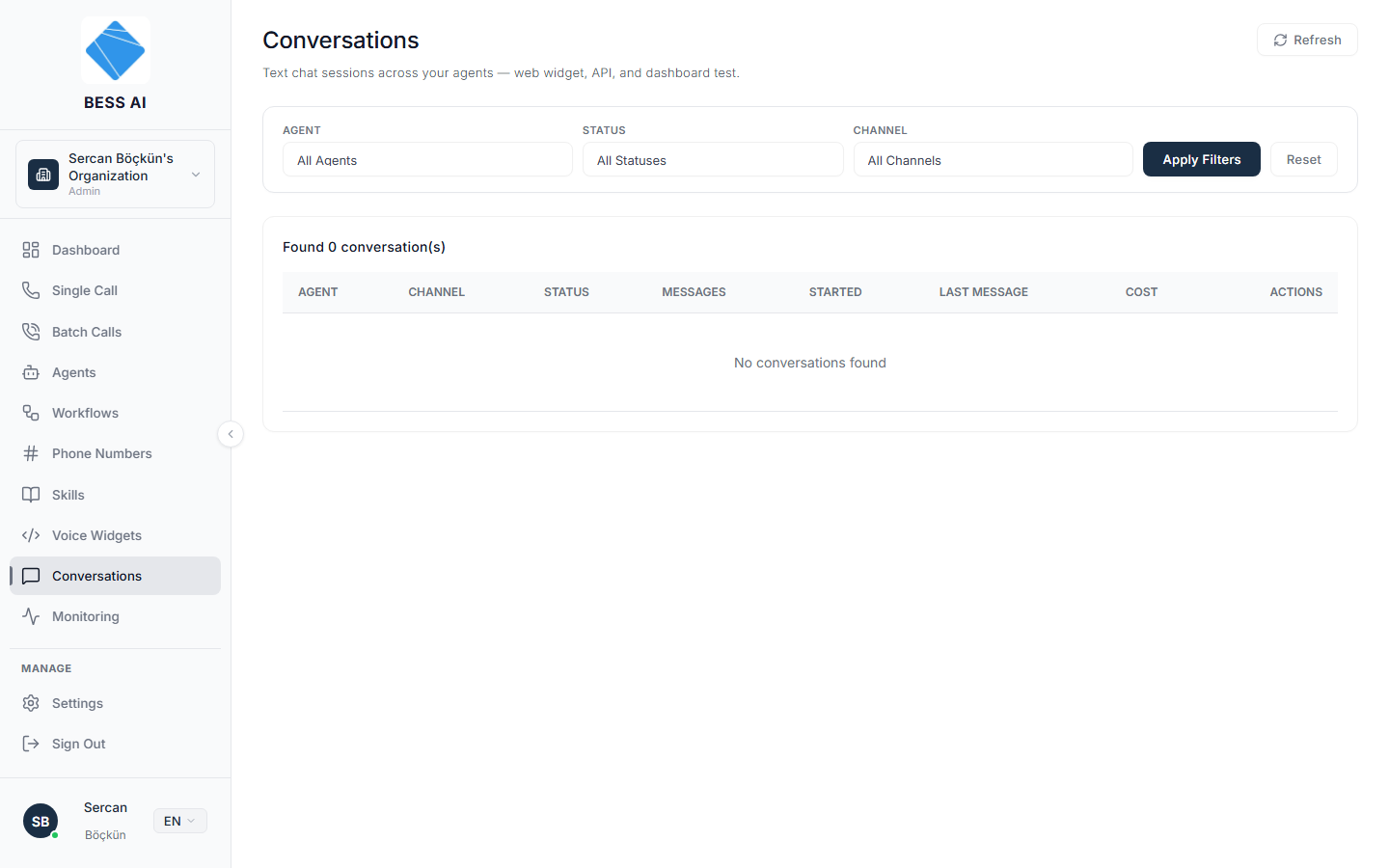
Filter the list
At the top of the page you can narrow the list down:
- Pick an Agent to see only that agent's conversations.
- Pick a Status — Active, Idle, or Closed.
- Pick a Channel — Web Widget, API, or Dashboard Test.
- Click Apply Filters to update the list, or Reset to clear everything.
The conversations table
Each row shows Agent, Channel, Status, Messages, Started, Last Message, Cost, and an Actions column with a View button.
Rows for active conversations show an idle countdown, such as "Idle Xm — auto-closes at Ym". This tells you how long the visitor has been quiet and when the session will close on its own.
How sessions end
A conversation can close in three ways:
- Explicitly — you close it from the details view, or the visitor ends the chat.
- Idle timeout — the visitor leaves or stops replying, and the session auto-closes after the idle countdown runs out.
- Message cap — the session reaches its maximum number of messages.
However a session closes, it moves to the Closed status and its summary and billing are processed.
View a conversation
- Find the conversation in the table.
- Click View in the Actions column. The Conversation Details modal opens.
Inside the modal you will find:
- Metadata — the agent, channel, status, when the session started, the last message time, how many agent replies were sent, tokens used, and cost.
- Summary and Sentiment cards — a short write-up of what the conversation was about and how it went.
- The full message thread — every message, labeled Visitor, Agent, Tool, or System. Tool entries show the actions the agent executed mid-conversation, such as a lookup or a booking.
Close a session manually
If a conversation is still open and you want to end it now:
- Open the conversation with View.
- Click Close Session.
- Confirm the prompt: "Close this chat session? This ends the conversation and queues the summary/billing pipeline."
Closing a session is final. The visitor can no longer reply in that session, and the summary and billing steps start right away. If they return later, a new session begins.
Tips
- Use the Channel filter with Dashboard Test to separate your own testing from real visitor traffic.
- Sort out problem conversations quickly by checking the Sentiment card before reading the whole thread.
- Keep an eye on the Cost column to spot unusually long or expensive sessions.