Get Started
Go from a fresh account to your first live AI conversation in about ten minutes — no code, no phone line required.
1. Create your account
Sign up at platform.bess-ai.com with email or Google. Your account starts with a personal organization; you can create or join team organizations later (see Settings).
:::note Claim your welcome bonus Verify your email to claim the $5 free welcome bonus — you'll see the banner "🎁 Verify your email to claim your $5 free welcome bonus." at the top until you do. That's enough credit for all of your first test calls. :::
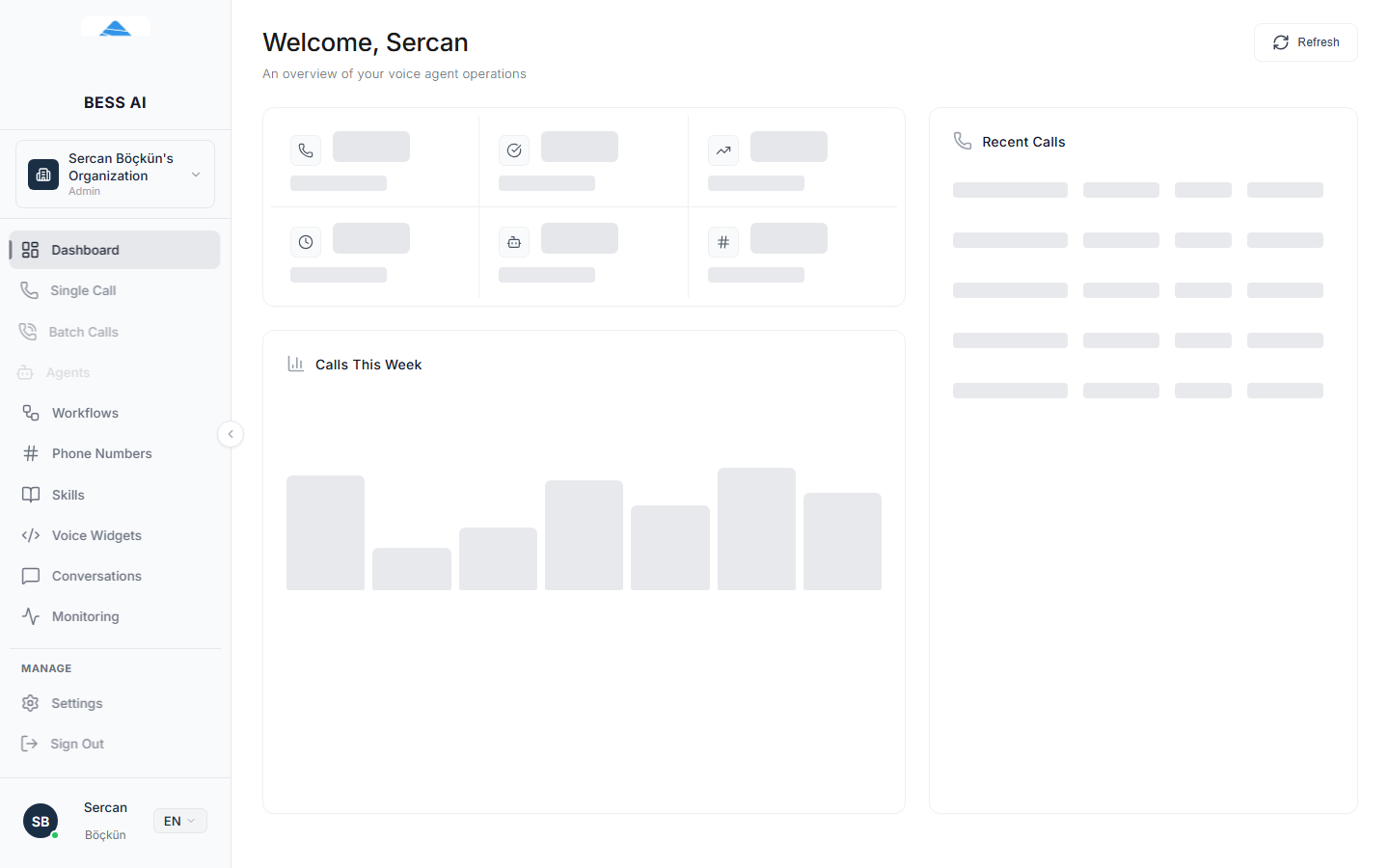
2. Create your first agent
- Open Agents in the left sidebar and click Create Agent.
- Choose Channel — pick Voice for a talking agent (it can also chat later) or Chat for a text-only agent.
- Choose Agent Type — pick Single Prompt for your first agent. (Voice only; chat agents are always single-prompt.)
- Give it a name, and write a System Prompt — plain instructions like: "You are the assistant for Acme Dental. Answer questions about opening hours and book appointments. Be brief and friendly."
- Optionally set a Greeting Message — the first sentence the agent speaks.
- Click Create Agent.
The full options — models, voices, tools, knowledge — are covered in the Agents guides.
3. Test it — right in the browser
On the agent's configuration page, the right-hand panel is your test bench:
- Voice tab → Start Test Call — talk to your agent through your browser microphone and watch the live transcript.
- Chat tab → Start Chat Test — message it in text.
Iterate on the prompt, click Save, and test again until it behaves the way you want.
4. Publish
Click Publish. This is the step people miss:
:::warning Save is not Publish Save stores a draft. Only a Published agent can take real calls, be assigned to a phone number, or power a website widget. If your agent isn't showing up in a dropdown somewhere, it's almost always because it isn't published yet. :::
5. Put it to work
Where your agent goes next depends on your channel:
| I want… | Go to |
|---|---|
| It to answer or place real phone calls | Phone Numbers — connect your number via SIP, then assign the agent |
| To call one customer now | Single Call |
| To call a whole list | Batch Calls |
| A talk-or-chat bubble on my website | Website Widgets |
| Automatic follow-ups after each conversation | Workflows |
Where to watch results
Every voice call lands in Monitoring with a transcript, recording, cost, and sentiment; every chat session lands in Conversations. Your balance and usage live under Settings → Billing.