Monitoring
The Monitoring page is your full call history: filter, inspect, and export every call your agents have handled.
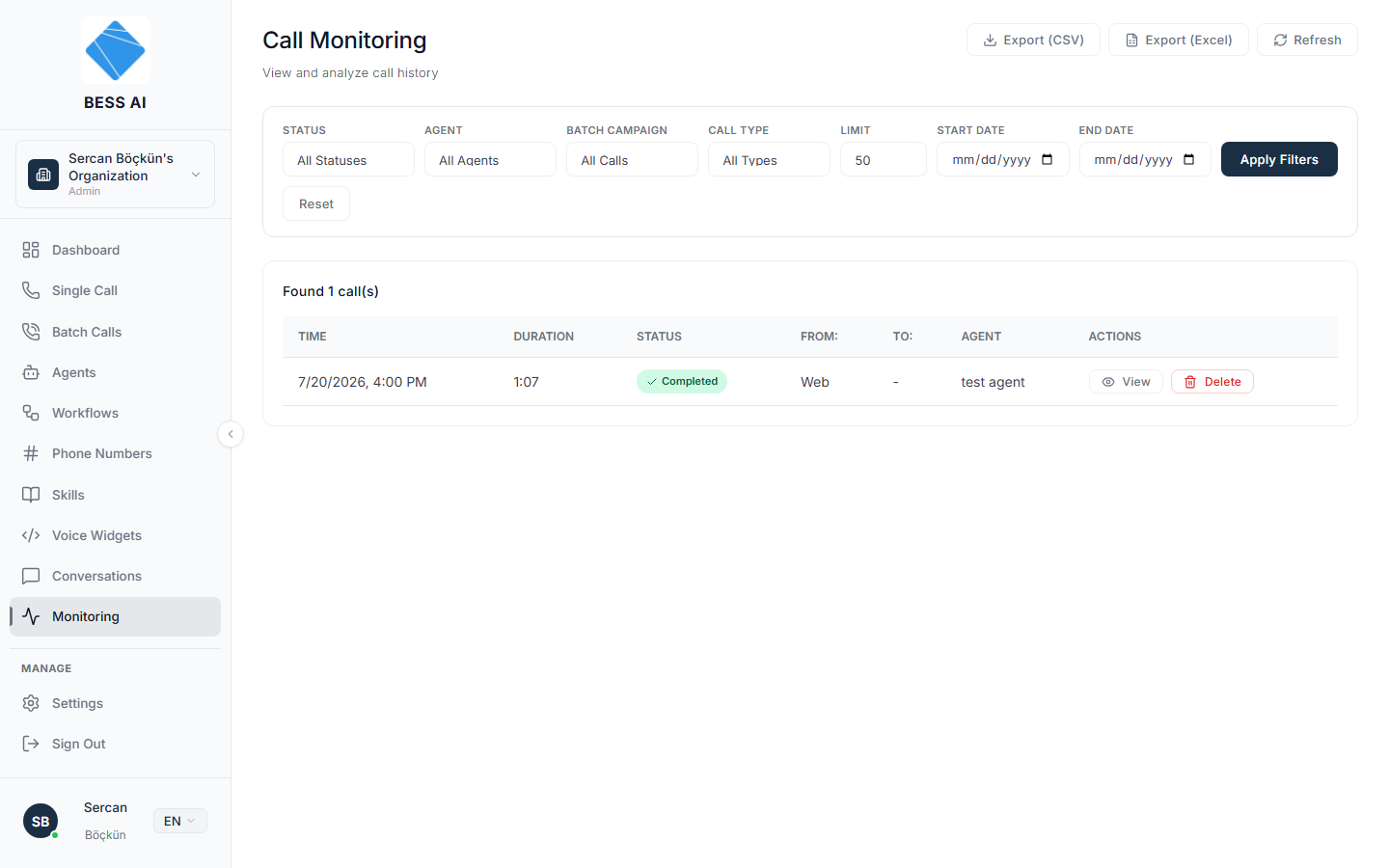
The page header reads Call Monitoring with the subtitle View and analyze call history. In the header you will also find Export (CSV), Export (Excel), and Refresh.
Filtering calls
Use the filter bar to narrow the list:
- Status — filter by call outcome.
- Agent — show only calls handled by one agent.
- Batch Campaign — All Calls, Single Calls Only, or Batch Calls Only.
- Call Type — Inbound, Outbound, or Web.
- Limit — how many rows to load.
- Start/End Date — restrict results to a date range.
Click Apply Filters to run the search, or Reset to clear everything back to defaults.
Call statuses
Every call carries a status — visible in the dashboard and returned as-is by the API (GET /v1/calls, SDK client.call.list(status=...)). The full vocabulary:
In-progress statuses (the call is still being set up or is live):
| API value | Dashboard label | Meaning |
|---|---|---|
waiting | Waiting | Call record created; setup has not started yet (web calls stay here until the visitor joins). |
initiating | — | Outbound SIP call is being placed (transient — usually replaced by ringing within a second). |
dialing | Dialing | Outbound leg is being dialed (batch campaigns). |
ringing | Ringing | The destination phone is ringing. |
connected | Connected | The call was answered and is live. |
Terminal statuses (the final outcome):
| API value | Dashboard label | Meaning |
|---|---|---|
ended | Completed | The call connected and finished normally. |
no_answer | No Answer | The call was never answered (ring timeout or hang-up while ringing). |
busy | Busy | The destination rejected the call as busy (SIP 486/600). |
answered_no_speech | Answered - Silent | The call was picked up but no human speech was detected (silence or voicemail). |
failed | Failed | The call could not be completed due to an error. |
:::note Legacy values
Older call records may carry completed (equivalent to ended). The status filter is an exact match, so filtering for ended does not return legacy completed rows.
:::
The call table
Each row shows Time, Duration, Status, From, To, and Agent, plus an Actions column with View and Delete.
- Click View on a row to open the Call Details modal.
- Click Delete to remove a call permanently (see the warning below).
Call Details
The Call Details modal is the deep dive on a single call:
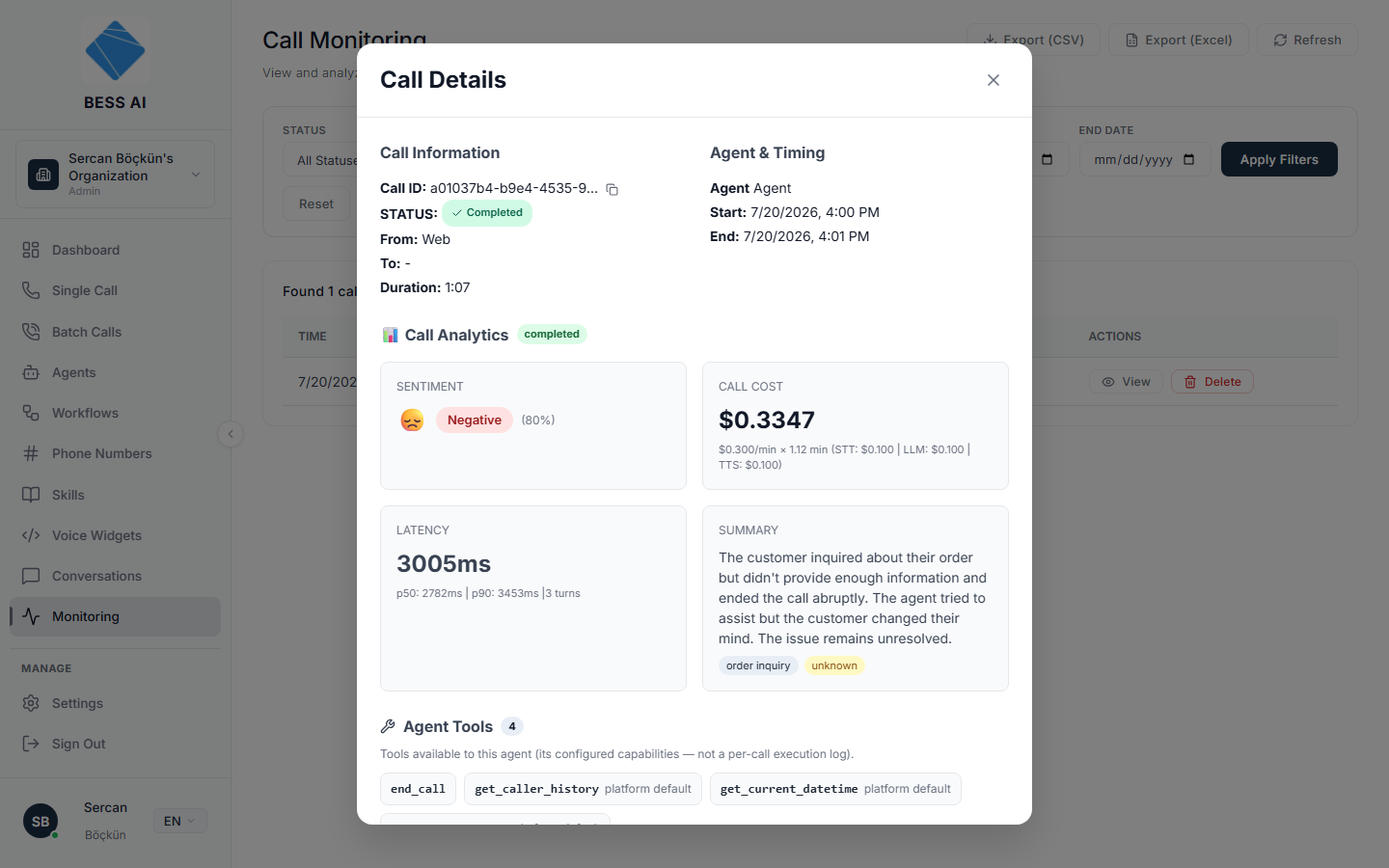
- Call Information — the call ID with a copy button, status, From and To numbers, and duration.
- Agent & Timing — which agent handled the call and when it started and ended.
- Call Analytics — Sentiment, Call Cost with a per-minute breakdown, Latency, and an automatic Summary.
- Workflow Executions — the post-call automations that ran for this call and whether they succeeded.
- Agent Tools — the tools available to the agent.
- Call Transcript — the full conversation, turn by turn.
- Call Recording — an audio player so you can listen to the call.
Agent Tools shows the agent's configured capabilities, not a per-call execution log. It lists what the agent could use, not necessarily what it actually used on this call.
Exporting
- Set your filters and click Apply Filters so the table shows exactly the calls you want.
- Click Export (CSV) or Export (Excel).
Exports include full details for the first 50 rows only. If you need details beyond that, narrow your filters (for example with a tighter date range) and export again in smaller batches.
Deleting a call
Deleting a call is permanent. The confirmation says: This action is irreversible and cannot be undone. The record, transcript, and recording are gone for good — export first if you might need the data later.
Troubleshooting
- A recent call is not showing. Click Refresh, then check your filters — a date range or status filter may be hiding it. Reset clears all filters.
- The table seems too short. The Limit filter caps how many rows load. Raise it and click Apply Filters.
- My export is missing details for some calls. Only the first 50 rows include full details. Filter down and export in batches.
- No recording in Call Details. Recordings appear only for calls where recording was enabled and the call actually connected.