Phone Numbers
The Phone Numbers page is where you register your numbers, connect them to your telephony provider over SIP, and choose which agent answers or dials from each number.
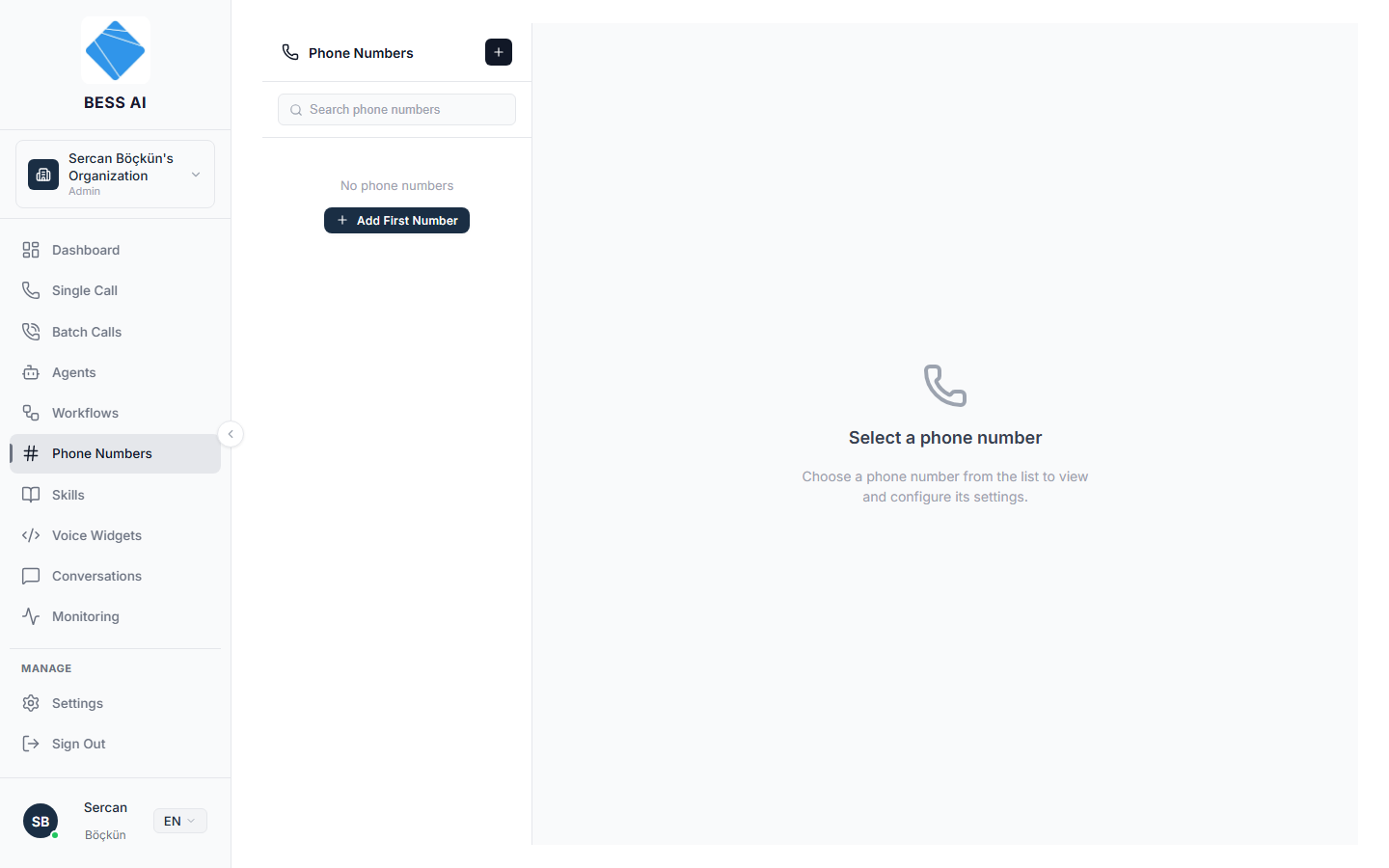
The page has two panes: a Phone Numbers list on the left (with an add button and a search box) and a detail panel on the right. Until you pick a number, the right side shows a Select a phone number prompt.
How BESS connects to your provider
Before filling in any forms, it helps to know what is actually being wired up. BESS runs its own SIP gateway — there is no third-party telephony middleman between your provider and your agent.
 Caller ──► Your operator / PBX ──► BESS SIP gateway ──► AI agent joins the call
            (owns the number)       34.14.67.246:5060        (STT → LLM → TTS)
The BESS SIP gateway address is 34.14.67.246, port 5060 (UDP and TCP). Call audio (RTP) uses UDP ports 10000–20000 on the same address.
Connecting a number is always a two-sided handshake:
| Direction | Your provider / PBX must… | BESS must… |
|---|---|---|
| Inbound (callers reach your agent) | Route the number's incoming calls to 34.14.67.246:5060 | Accept calls for your number only from your provider's SIP address (taken from the Termination URI you enter) |
| Outbound (your agent dials out) | Accept calls from 34.14.67.246 — by IP whitelist, SIP credentials, or both | Send calls to the Termination URI, authenticating with the username/password you enter |
Ask your operator for three things when you order a SIP trunk: their SIP server address (this becomes your Termination URI), the credentials if they use any, and — for inbound — confirmation that the number is routed to 34.14.67.246:5060 and that their outgoing SIP traffic originates from the same address you were given as the SIP server. If their calls egress from a different IP range, tell us (contact@bess-ai.com) so we can widen the allow-list for your trunk; otherwise their calls will be silently rejected.
Add a phone number
- Click the add button above the list.
- Enter the Phone Number. It is required and cannot be changed later — double-check it. Use full international format, like
+905551234567. - Optionally add a Nickname so the number is easy to recognize.
- Pick the Provider: Custom telephony, NetGSM, Twilio, or Telnyx. This is a label for your own bookkeeping — the SIP details you enter in the next step are what actually connect the number.
- Save. The number now appears in the list.
The phone number itself cannot be edited after creation. If you typed it wrong, delete the entry and add it again.
:::note Number formats
For public phone numbers, always use E.164 (+90…). Two special cases exist for PBX ("santral") integrations:
- National format (
0212…) — some PBXs and Turkish operators require the caller ID in national format without+90. - Bare extensions (
1009) — when BESS registers as an internal extension of your PBX (a common 3CX setup), the "number" is the extension itself.
When dialing out, BESS automatically picks the right format for the destination: short numbers (up to 6 digits) are dialed as extensions, numbers starting with 0 in national format, and everything else in international format. If your PBX integration needs one of these special cases, set it up together with our support team.
:::
Connect the number via SIP
A number cannot make or receive calls until it has a SIP connection that has been synced.
- Select your number in the list, then click Add SIP Connection ("Connect to your number via SIP trunking").
- Fill in the details from your telephony provider:
- Termination URI (required) — your provider's SIP server address, for example
sip.yourprovider.com:5060or10.20.30.40:5060. - SIP username and password, if your provider uses credential (digest) authentication. Leave empty for pure IP-whitelist trunks.
- Connection Type: Inbound, Outbound, or Both.
- Outbound Transport: TCP, UDP, or TLS. UDP is the most common for Turkish operators.
- Termination URI (required) — your provider's SIP server address, for example
- Save the connection.
- Click Sync connection.
What each field really does
Termination URI plays a double role. For outbound calls it is the address BESS sends your calls to. For inbound calls its host part becomes the security allow-list: BESS will only accept calls to your number that arrive from that host or IP. Calls from anywhere else are rejected before they ring. This protects your number from spoofed traffic — but it also means the Termination URI must match where your provider's calls actually come from (see How BESS connects to your provider).
Username / password — whether you need these depends on your provider:
| Provider style | Termination URI | Credentials |
|---|---|---|
| SIP trunk operator with credentials (e.g. NetGSM, Netsantral) | Operator's SIP server, e.g. sip7.netsantral.com | Required — usually the number itself as username |
| IP-whitelist trunk (e.g. Türk Telekom dedicated trunks) | The trunk's IP address | Usually none — authentication is by IP on both sides |
| Your own PBX (e.g. 3CX) | Your PBX host, e.g. yourcompany.3cx.com.tr:5060 | The extension's credentials, if BESS registers as an extension |
Connection Type decides which trunk(s) get created when you sync: Inbound creates a receiving trunk, Outbound a dialing trunk, Both creates both from one set of details. You can also create two separate connections (one inbound, one outbound) if the details differ per direction.
What syncing does
Saving the form only stores the configuration. Sync is what provisions it on the BESS SIP gateway: it creates the actual SIP trunk(s), registers your number and your provider's address on them, and — if an inbound agent is assigned — creates the routing rule that connects incoming calls to your agent. The connection's status changes to synced on success, or shows an error you can act on.
Sync again after every edit to the connection. Re-syncing replaces the trunks with fresh ones; this is safe and takes effect immediately, without dropping live calls.
This is the single most common setup mistake: a SIP connection that exists but was never synced. The trunk must reach synced status before any calls will work — both the Single Call and Batch Calls pages block on it. If a trunk shows up disabled elsewhere in the app, come back here and sync it.
Once a number has both an inbound and an outbound connection, adding another connection is disabled.
Assign agents to the number
With the number selected, use the detail panel:
- Under Inbound Call Agent, open the Call Agent dropdown and pick the agent that should answer incoming calls. The default is No agent (reject calls) — until you change it, incoming calls are rejected.
- Set Allowed Inbound Countries: All countries allowed, Turkey only, or a Custom list.
- Repeat the same under Outbound Call Agent for calls made from this number, including its own allowed-countries setting.
Only published agents appear in the dropdowns. If your agent is missing, publish it first.
Assigning an inbound agent is what activates inbound routing: it creates the rule that answers calls to this number with that agent's published version. The published configuration is snapshotted into the routing rule — which leads to an important rule of thumb:
:::tip Republish to go live When you edit an agent (prompt, voice, tools…), inbound calls keep using the previously published version until you publish again. If a number seems to answer with an outdated agent, republish the agent — publishing refreshes the routing configuration for every number the agent is assigned to. :::
The Make an outbound call button in the header stays disabled until an outbound agent is assigned — it shows the hint Assign an outbound agent first.
If your agent should be able to hand callers over to a real person, continue with the Call Transfers guide — transfers need their own small piece of SIP configuration.
Provider setup checklists
What to arrange with each kind of provider before testing:
SIP trunk operator (credentials-based — NetGSM, Netsantral, …)
- Order a SIP trunk; receive server address, username, password.
- Ask the operator to route the number's inbound calls to
34.14.67.246:5060. - In BESS: add the number (E.164), add one connection with type Both, the operator's server as Termination URI, the credentials, transport UDP. Sync.
IP-whitelist trunk (Türk Telekom-style dedicated trunks)
- Give the operator the BESS gateway IP
34.14.67.246for their whitelist (signaling5060, media UDP10000–20000). - Get the trunk IP(s) their calls come from. If inbound calls can arrive from several IPs, send us the full list or CIDR range.
- In BESS: Termination URI = the trunk IP, usually no credentials. Sync, then place a test call in each direction.
Your own PBX / santral (3CX, Asterisk, …)
- Create a dedicated extension for BESS on the PBX (e.g.
1009). - In BESS: the "phone number" can be the public number (inbound via the PBX) or the extension itself, Termination URI = your PBX address, credentials = the extension's. Sync.
- Make sure the PBX accepts SIP traffic from
34.14.67.246. - If agents will transfer calls to your staff, also read the Call Transfers guide — PBXs need one extra setting for transfers.
Troubleshooting
- My trunk is grayed out on Single Call or Batch Calls. It is not synced. Select the number here and click Sync connection.
- Incoming calls are rejected / never reach the agent. Three possible causes, in order of likelihood:
- The Call Agent dropdown under Inbound Call Agent is still No agent (reject calls) — assign a published agent.
- The connection was edited but not re-synced — sync it.
- Your provider's calls originate from a different address than your Termination URI, so the gateway rejects them as untrusted. Confirm the exact egress IPs with your provider and contact support to extend the allow-list.
- Callers hear silence, or only one side hears audio. Almost always a media (RTP) path problem: your provider or PBX firewall must allow UDP
10000–20000to and from34.14.67.246. Symmetric RTP ("comedia") should be enabled on the provider side. - Outbound calls fail immediately (403 / 407 errors). The provider rejected our authentication: wrong username/password, our gateway IP missing from their whitelist, or the caller ID format is not what they expect (some operators require national format — see Number formats).
- The agent answers with an old prompt or voice. The agent's published version is what answers calls. Publish the agent again to refresh it.
- Calls to or from certain countries fail. Check Allowed Inbound Countries and the matching outbound setting — a Turkey-only setting blocks everything else.
- I cannot add another SIP connection. The number already has both an inbound and an outbound connection, so adding is disabled.
- I entered the wrong number. The number cannot be changed. Delete the entry and create a new one.