Skills
On-demand knowledge files an agent loads mid-call, instead of bloating the system prompt.
Think of skills as reference cards. Instead of packing everything your agent might ever need into one long prompt, you store each topic as its own skill. During a call, the agent pulls out a card only when the conversation actually needs it. This keeps your agents fast and focused.
For example, you might create one skill for your return policy, one for pricing details, and one for troubleshooting steps. The agent reads each skill's description and decides on its own when to load it.
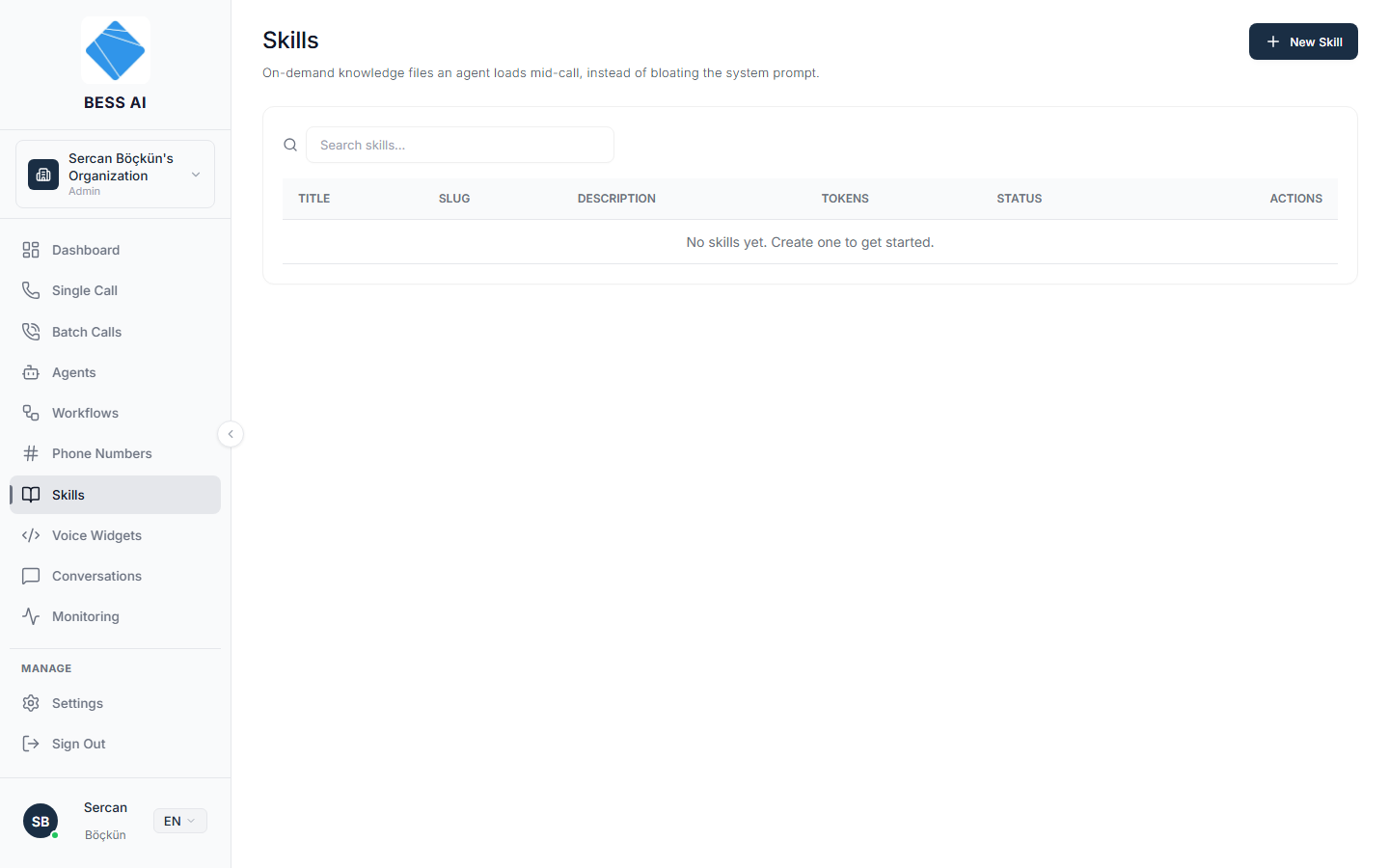
The Skills page
At the top of the page you will find:
- A New Skill button to create a skill.
- A search box to find skills by name.
Below is a table listing every skill in your library, with these columns:
- Title — the skill's display name.
- Slug — its short technical identifier.
- Description — the text the agent reads to decide whether to load the skill.
- Tokens — how large the skill's content is.
- Status — whether the skill is active.
- Actions — Edit and Delete.
Create a skill
- Click New Skill.
- Fill in Title — a clear, human-readable name.
- Check the Slug. It is auto-filled from the title and must use only lowercase letters, digits, and underscores. You can adjust it if you like.
- Write the Description (when to use). As the hint says: "This is what the model reads to decide whether to load the skill — make it specific." A vague description means the agent may load the skill at the wrong time, or never.
- Add the skill's knowledge in Content (Markdown). This is the reference material the agent reads once the skill is loaded.
- Leave the Active checkbox on if the skill should be usable right away.
- Click Create Skill.
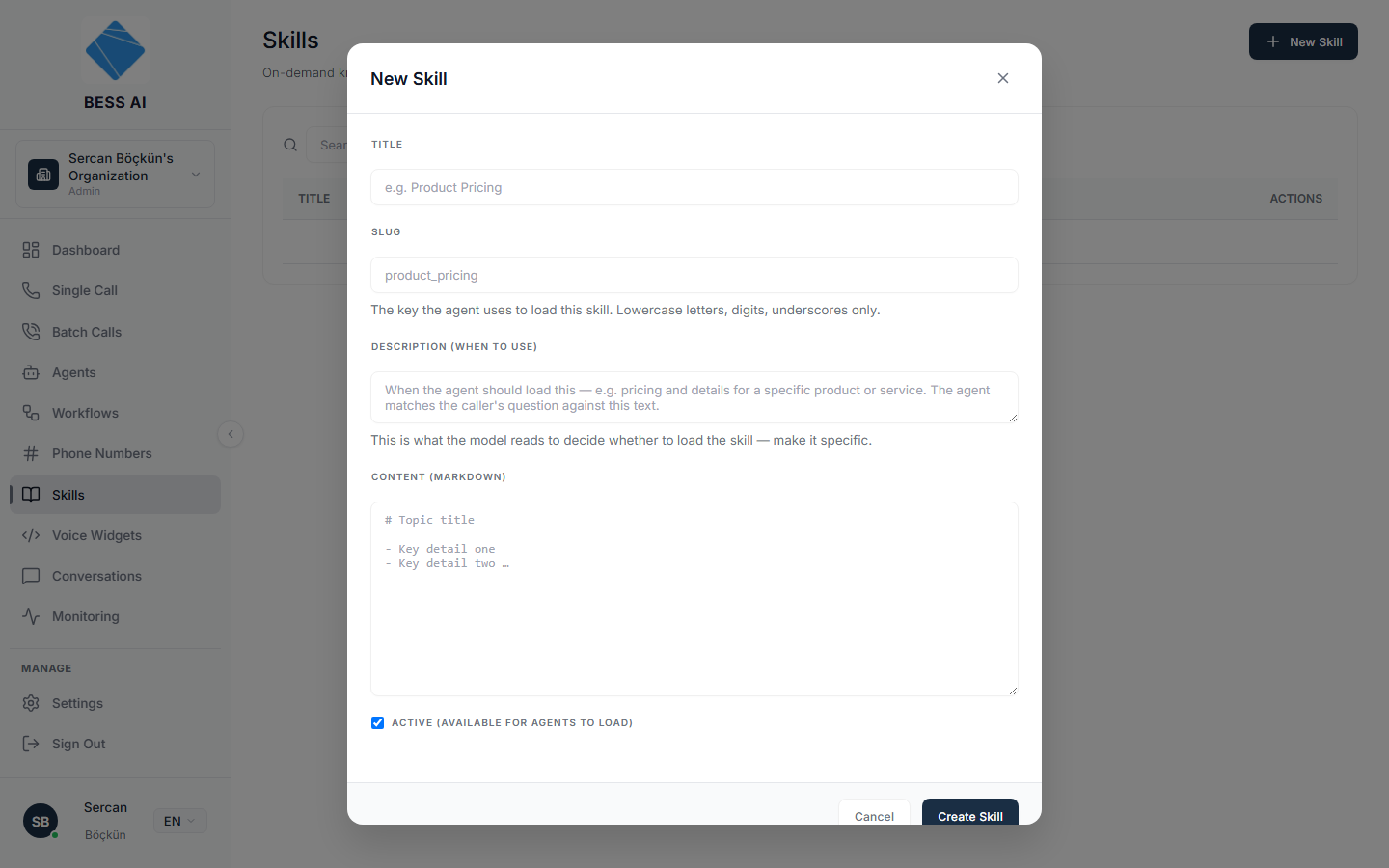
All fields are required. If the Create Skill button will not save, check that every field — including Content (Markdown) — has something in it.
Writing a good description
The description is the most important field. The agent only sees the description while deciding — not the content — so tell it exactly when the skill applies. Compare:
- Too vague: "Information about products."
- Specific: "Use when the caller asks about refund eligibility, return windows, or how to send an item back."
Give a skill to an agent
This page is your skill library only. Creating a skill here does not give it to any agent. Which skills an agent can use is selected on the Agent Config page — open the Skills accordion and click Select Skills to choose them for that agent.
- Open the agent that should use the skill.
- On the Agent Config page, expand the Skills accordion.
- Click Select Skills and pick the skills this agent may load.
Edit or remove a skill
- Find the skill in the table (use the search box if the list is long).
- Click Edit in the Actions column to change its title, description, or content.
- Click Delete to remove it from the library.
Editing a skill updates it for every agent that uses it — you only maintain the content in one place.