Workflows
Automate actions with AI-powered workflows.
Workflows let your agents do things automatically — for example, log every finished call to a spreadsheet, send a follow-up email, or alert your team. You describe what you want in plain language, and BESS builds the workflow for you.
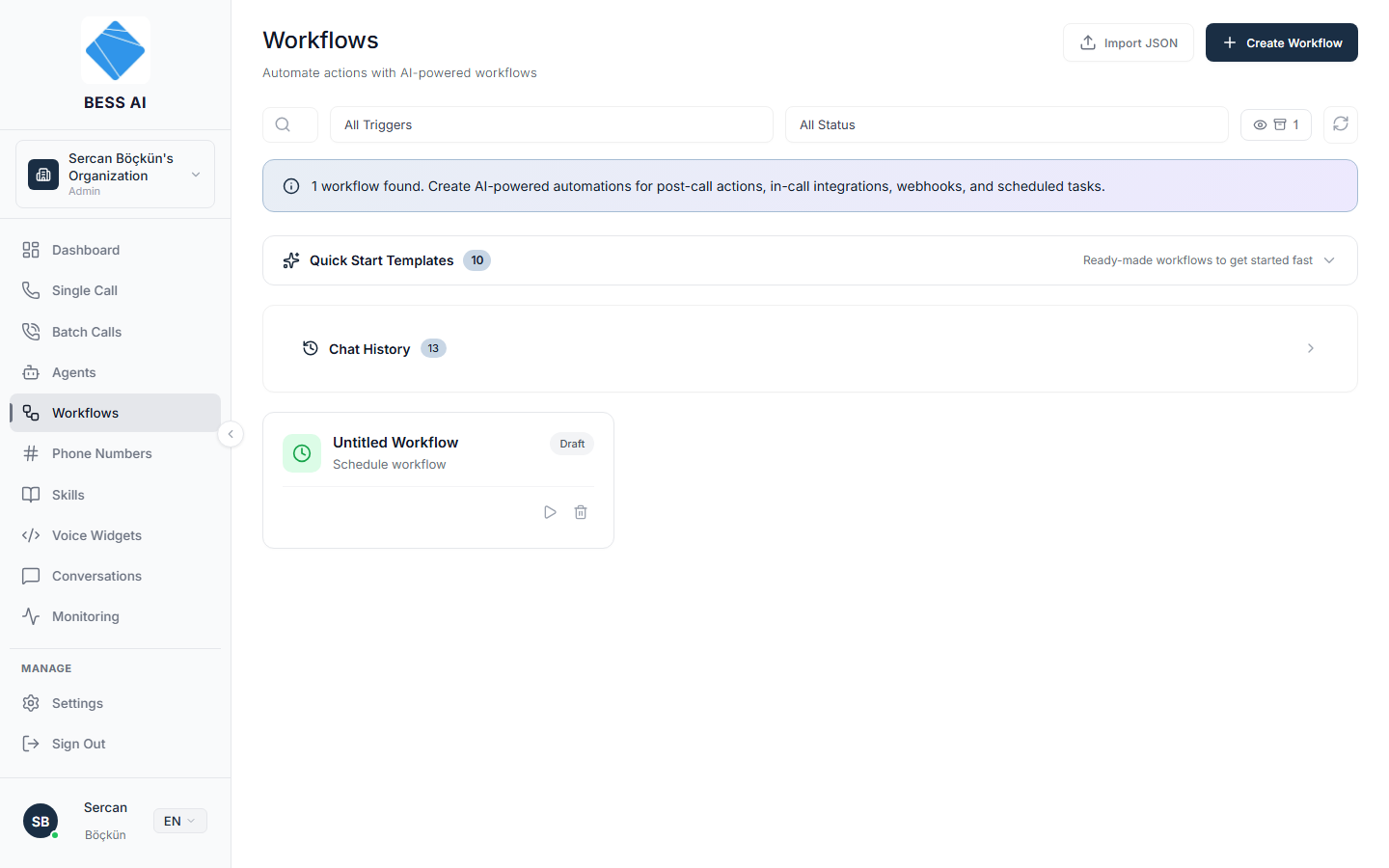
The Workflows page
At the top of the page you will find two buttons:
- Import JSON — bring in a workflow file you already have.
- Create Workflow — build a new workflow with the AI chat builder.
Below them you can:
- Type in the Search workflows… box to find a workflow by name.
- Filter by trigger with All Triggers, or by status with All Status (Active, Draft, Paused, or Error).
- Turn on the archived toggle to see workflows you have deleted.
Trigger types
Every workflow starts from a trigger. There are four kinds:
- Post-call — runs after a call ends.
- In-call — runs while a call is still happening.
- Webhook — runs when an outside system sends a request.
- Scheduled — runs on a timer.
Quick Start Templates
The Quick Start Templates section offers "Ready-made workflows to get started fast." Pick the template closest to what you need and adjust it — this is usually faster than starting from a blank page.
Workflow cards
Each workflow appears as a card showing its trigger icon, name, status badge, and when it last ran. From the card you can pause, activate, or delete the workflow — and restore it if it was archived.
Deleting a workflow is a soft delete. It can be restored later from the archive. Use the archived toggle at the top of the page to find deleted workflows and bring them back.
Create a workflow with the AI builder
- Click Create Workflow.
- Describe the automation in plain language in the chat. For example: "After each call, add the caller and outcome to my Google Sheet."
- Review the preview of the generated workflow, including the credentials it detected (for example, a Google account connection).
- Give the workflow a name.
- Click Create Workflow to save it.
Credentials are not set up for you automatically. Whether you import a workflow or let the AI generate one, you'll need to configure them after import. A workflow with missing credentials will fail when it runs.
Link the workflow to an agent
Creating a workflow does not make it run yet.
Workflows only run after they are linked to an agent. Linking does not happen on this page — it happens on the Agent Config page, inside the Workflows accordion, where you also set the trigger condition and priority for each linked workflow.
- Open the agent that should use the workflow.
- On the Agent Config page, expand the Workflows accordion.
- Link your workflow, then set its trigger condition and priority.
Once the workflow is linked and Active, it runs automatically whenever its trigger fires.